
Custom ListView in Android Studio using Kotlin – Easy 7 Steps
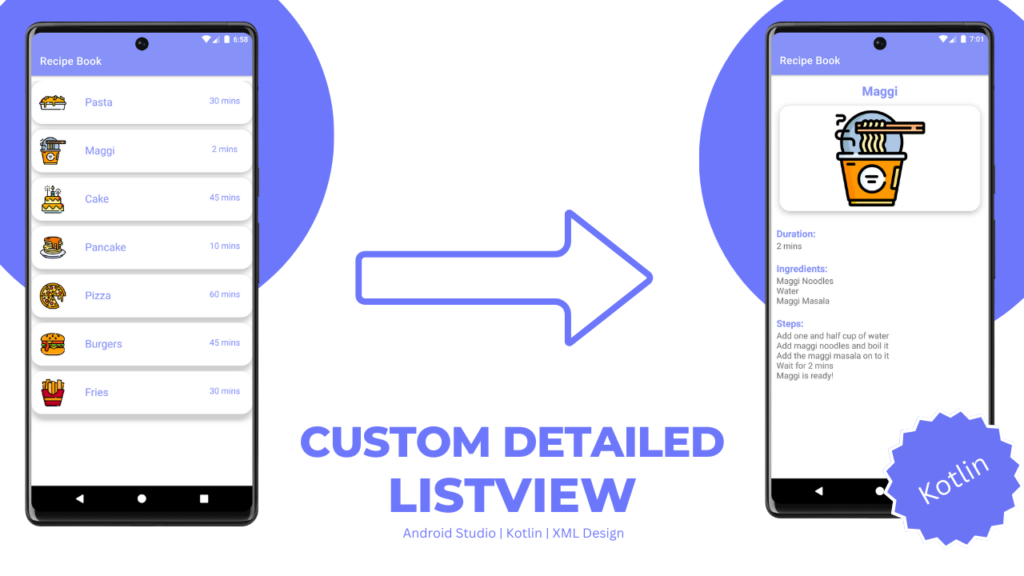
Table of Contents
- Views
- What is ListView?
- Adapter
- Array Adapter
- Step-by-Step Implementation
- Download Drawables
- Output
- AK Bonus Points
Views
In Android Studio, there are different types of views to design our android applications. Views such as ImageView, TextView, ListView, etc. These types of views help you to make the user interface friendly. You can drag or drop the view in the XML design section or you can simply write the code in the XML code section.
What is ListView?
ListView is one of the views from the view group which shows the data in a vertical scrollable format. It enhances the user experience as it makes the list easily understandable for users.
In this article, we are going to create a simple list using an array adapter.
We will store string data in an array and display the respective data in a list format.
Before that, we need to understand a few concepts used for creating a list such as adapters.
Adapter
The adapter is present between the view and data. It helps to display data in views. All the data items are loaded in the adapter and with the help of view/UI, the data items are displayed.
There are different types of adapters that are used as per their requirements.
In this article, we will focus on ArrayAdapter only.
Array Adapter
In the below example, we have used ArrayAdapter to display list items in our list.
In MainActivity.java, you can see I have created an array list called data in which all the list items are present in it.
Now, the same array list will be used in our ArrayAdapter to display the data using our list. Firstly, we will create an ArrayAdapter then we will set the adapter and it will be ready to show our data in our list.
Step-by-Step Implementation
Step 1: Create New Project in Android Studio.
Choose Empty Activity and then type the Application Name as “Custom ListView”.
Step 2: Pre-requisites
Gradle app
buildFeatures {
        viewBinding true
    }
Download Drawables
Right-click and Save Image.





colors.xml
<?xml version="1.0" encoding="utf-8"?>
<resources>
    <color name="purple_200">#FFBB86FC</color>
    <color name="purple_500">#FF6200EE</color>
    <color name="purple_700">#FF3700B3</color>
    <color name="teal_200">#FF03DAC5</color>
    <color name="teal_700">#FF018786</color>
    <color name="black">#FF000000</color>
    <color name="white">#FFFFFFFF</color>
    <color name="lavender">#8692f7</color>
</resources>
strings.xml
<resources>
    <string name="app_name">Recipe Book</string>

    //pasta

    <string name="pastaIngredients">Pasta
\nCream Cheese
\nParmesan Cheese
\nOlive Oil
\nGarlic
\nSalt Pepper</string>
    <string name="pastaDesc">Cook your pasta until al dente
\nSaute’ garlic in olive oil until fragrant
\nAdd cream cheese, pasta cooking water, parmesan, and stir well
\nDrain and add pasta to the skillet
\nToss until well combined, adding some pasta water if needed</string>

    //maggi

    <string name="maggiIngredients">Maggi Noodles
\nWater
\nMaggi Masala</string>

    <string name="maggieDesc">Add one and half cup of water
\nAdd maggi noodles and boil it
\nAdd the maggi masala on to it
\nWait for 2 mins
\nMaggi is ready!</string>

    //cake

    <string name="cakeIngredients">Maggi Noodles
\nWater
\nMaggi Masala</string>
    <string name="cakeDesc">Add one and half cup of water
Add maggi noodles and boil it
Add the maggi masala on to it
\nWait for 2 mins
\nMaggi is ready!</string>

    //pancake

    <string name="pancakeIngredients">Maggi Noodles
\nWater
\nMaggi Masala</string>
    <string name="pancakeDesc">Add one and half cup of water
Add maggi noodles and boil it
Add the maggi masala on to it
\nWait for 2 mins
\nMaggi is ready!</string>

    //pizza

    <string name="pizzaIngredients">Maggi Noodles
\nWater
\nMaggi Masala</string>
    <string name="pizzaDesc">Add one and half cup of water
Add maggi noodles and boil it
Add the maggi masala on to it
\nWait for 2 mins
\nMaggi is ready!</string>

    //burgers

    <string name="burgerIngredients">Maggi Noodles
\nWater
\nMaggi Masala</string>
    <string name="burgerDesc">Add one and half cup of water
\nAdd maggi noodles and boil it
\nAdd the maggi masala on to it
\nWait for 2 mins
\nMaggi is ready!</string>

    //fries

    <string name="friesIngredients">Maggi Noodles
\nWater
\nMaggi Masala</string>
    <string name="friesDesc">Add one and half cup of water
\nAdd maggi noodles and boil it
\nAdd the maggi masala on to it
\nWait for 2 mins
\nMaggi is ready!</string>

</resources>
themes.xml
list_item.xml
<?xml version="1.0" encoding="utf-8"?>
<androidx.cardview.widget.CardView
    xmlns:android="http://schemas.android.com/apk/res/android"
    xmlns:app="http://schemas.android.com/apk/res-auto"
    android:layout_marginStart="12dp"
    android:layout_marginEnd="12dp"
    android:layout_marginVertical="10dp"
    android:layout_marginHorizontal="10dp"
    app:cardCornerRadius="20dp"
    app:cardElevation="8dp"
    android:layout_width="match_parent"
    android:layout_height="wrap_content">

    <RelativeLayout
        android:layout_width="match_parent"
        android:layout_height="wrap_content">

        <com.google.android.material.imageview.ShapeableImageView
            android:layout_width="60dp"
            android:layout_height="60dp"
            android:id="@+id/listImage"
            android:src="@drawable/maggi"
            android:scaleType="centerCrop"
            android:layout_marginStart="10dp"
            android:layout_marginBottom="10dp"
            android:layout_marginTop="10dp"
            app:shapeAppearanceOverlay="@style/roundedImageViewRounded"/>

        <TextView
            android:layout_width="120dp"
            android:layout_height="30dp"
            android:id="@+id/listName"
            android:text="Name"
            android:textColor="@color/lavender"
            android:textSize="20sp"
            android:layout_marginTop="25dp"
            android:layout_marginStart="30dp"
            android:layout_toEndOf="@id/listImage"/>

        <TextView
            android:layout_width="80dp"
            android:layout_height="30dp"
            android:id="@+id/listTime"
            android:text="time"
            android:textSize="16sp"
            android:layout_toEndOf="@id/listName"
            android:layout_marginTop="25dp"
            android:layout_marginStart="100dp"
            android:textColor="@color/lavender"/>

    </RelativeLayout>

</androidx.cardview.widget.CardView>
activity_main.xml
<?xml version="1.0" encoding="utf-8"?>
<androidx.constraintlayout.widget.ConstraintLayout xmlns:android="http://schemas.android.com/apk/res/android"
    xmlns:app="http://schemas.android.com/apk/res-auto"
    xmlns:tools="http://schemas.android.com/tools"
    android:layout_width="match_parent"
    android:layout_height="match_parent"
    tools:context=".MainActivity">

    <ListView
        android:layout_width="match_parent"
        android:layout_height="match_parent"
        android:id="@+id/listview"
        android:scrollbars="vertical"
        android:layout_marginTop="12dp"
        tools:listitem="@layout/list_item"
        android:divider="@android:color/transparent"
        android:dividerHeight="10.0sp"/>

</androidx.constraintlayout.widget.ConstraintLayout>
activity_detailed.xml
<?xml version="1.0" encoding="utf-8"?>
<LinearLayout
    xmlns:android="http://schemas.android.com/apk/res/android"
    xmlns:app="http://schemas.android.com/apk/res-auto"
    xmlns:tools="http://schemas.android.com/tools"
    android:layout_width="match_parent"
    android:layout_height="match_parent"
    android:orientation="vertical"
    tools:context=".DetailedActivity">

    <TextView
        android:layout_width="wrap_content"
        android:layout_height="wrap_content"
        android:id="@+id/detailName"
        android:layout_marginTop="14dp"
        android:text="Recipe Name"
        android:textSize="24sp"
        android:textColor="@color/lavender"
        android:textStyle="bold"
        android:layout_gravity="center"/>

    <androidx.cardview.widget.CardView
        android:layout_width="380dp"
        android:layout_height="200dp"
        android:id="@+id/cardImage"
        android:layout_marginTop="10dp"
        android:layout_gravity="center"
        app:cardCornerRadius="20dp"
        app:cardElevation="8dp">

        <ImageView
            android:layout_width="380dp"
            android:layout_height="200dp"
            android:id="@+id/detailImage"
            android:layout_marginTop="10dp"
            android:layout_gravity="center"
            android:src="@drawable/maggi"
            android:scaleType="centerCrop"/>

    </androidx.cardview.widget.CardView>

    <TextView
        android:layout_width="wrap_content"
        android:layout_height="wrap_content"
        android:text="Duration:"
        android:textColor="@color/lavender"
        android:textStyle="bold"
        android:layout_marginStart="10dp"
        android:layout_marginTop="30dp"
        android:textSize="18sp"/>

    <TextView
        android:layout_width="match_parent"
        android:layout_height="wrap_content"
        android:text="time"
        android:layout_marginStart="10dp"
        android:textSize="16sp"
        android:id="@+id/detailTime"/>

    <TextView
        android:layout_width="wrap_content"
        android:layout_height="wrap_content"
        android:text="Ingredients:"
        android:textColor="@color/lavender"
        android:textStyle="bold"
        android:layout_marginStart="10dp"
        android:layout_marginTop="20dp"
        android:textSize="18sp"/>

    <TextView
        android:layout_width="match_parent"
        android:layout_height="wrap_content"
        android:text="@string/maggiIngredients"
        android:layout_marginStart="10dp"
        android:textSize="16sp"
        android:id="@+id/detailIngredients"/>

    <TextView
        android:layout_width="wrap_content"
        android:layout_height="wrap_content"
        android:text="Steps:"
        android:textColor="@color/lavender"
        android:textStyle="bold"
        android:layout_marginStart="10dp"
        android:layout_marginTop="20dp"
        android:textSize="18sp"/>

    <TextView
        android:layout_width="match_parent"
        android:layout_height="wrap_content"
        android:text="@string/maggieDesc"
        android:layout_marginStart="10dp"
        android:textSize="16sp"
        android:id="@+id/detailDesc"/>

</LinearLayout>
ListData.kt
package com.example.listviewkotpractice

class ListData(
    var name: String,
    var time: String,
    var ingredients: Int,
    var desc: Int,
    var image: Int
)
ListAdapter.kt
package com.example.listviewkotpractice

import android.content.Context
import android.view.LayoutInflater
import android.view.View
import android.view.ViewGroup
import android.widget.ArrayAdapter
import android.widget.ImageView
import android.widget.TextView

class ListAdapter(context: Context, dataArrayList: ArrayList<ListData?>?) :
    ArrayAdapter<ListData?>(context, R.layout.list_item, dataArrayList!!) {

    override fun getView(position: Int, view: View?, parent: ViewGroup): View {

        var view = view
        val listData = getItem(position)

        if (view == null) {
            view = LayoutInflater.from(context).inflate(R.layout.list_item, parent, false)
        }

        val listImage = view!!.findViewById<ImageView>(R.id.listImage)
        val listName = view.findViewById<TextView>(R.id.listName)
        val listTime = view.findViewById<TextView>(R.id.listTime)

        listImage.setImageResource(listData!!.image)
        listName.text = listData.name
        listTime.text = listData.time

        return view
    }
}
MainActivity.kt
package com.example.listviewkotpractice

import android.content.Intent
import android.os.Bundle
import android.widget.AdapterView.OnItemClickListener
import androidx.appcompat.app.AppCompatActivity
import com.example.listviewkotpractice.databinding.ActivityMainBinding

class MainActivity : AppCompatActivity() {

    private lateinit var binding: ActivityMainBinding
    private lateinit var listAdapter: ListAdapter
    private lateinit var listData: ListData
    var dataArrayList = ArrayList<ListData?>()

    override fun onCreate(savedInstanceState: Bundle?) {
        super.onCreate(savedInstanceState)
        binding = ActivityMainBinding.inflate(layoutInflater)
        setContentView(binding.root)

        val imageList = intArrayOf(
            R.drawable.pasta,
            R.drawable.maggi,
            R.drawable.cake,
            R.drawable.pancake,
            R.drawable.pizza,
            R.drawable.burger,
            R.drawable.fries
        )
        val ingredientList = intArrayOf(
            R.string.pastaIngredients,
            R.string.maggiIngredients,
            R.string.cakeIngredients,
            R.string.pancakeIngredients,
            R.string.pizzaIngredients,
            R.string.burgerIngredients,
            R.string.friesIngredients
        )
        val descList = intArrayOf(
            R.string.pastaDesc,
            R.string.maggieDesc,
            R.string.cakeDesc,
            R.string.pancakeDesc,
            R.string.pizzaDesc,
            R.string.burgerDesc,
            R.string.friesDesc
        )
        val nameList = arrayOf("Pasta", "Maggi", "Cake", "Pancake", "Pizza", "Burgers", "Fries")
        val timeList = arrayOf("30 mins", "2 mins", "45 mins", "10 mins", "60 mins", "45 mins", "30 mins")

        for (i in imageList.indices) {
            listData = ListData(
                nameList[i],
                timeList[i], ingredientList[i], descList[i], imageList[i]
            )
            dataArrayList.add(listData)
        }

        listAdapter = ListAdapter(this@MainActivity, dataArrayList)
        binding.listview.adapter = listAdapter
        binding.listview.isClickable = true

        binding.listview.onItemClickListener = OnItemClickListener { adapterView, view, i, l ->
            val intent = Intent(this@MainActivity, DetailedActivity::class.java)
            intent.putExtra("name", nameList[i])
            intent.putExtra("time", timeList[i])
            intent.putExtra("ingredients", ingredientList[i])
            intent.putExtra("desc", descList[i])
            intent.putExtra("image", imageList[i])
            startActivity(intent)
        }
    }
}
DetailedActivity.kt
package com.example.listviewkotpractice

import android.os.Bundle
import androidx.appcompat.app.AppCompatActivity
import com.example.listviewkotpractice.databinding.ActivityDetailedBinding

class DetailedActivity : AppCompatActivity() {
    private lateinit var binding: ActivityDetailedBinding

    override fun onCreate(savedInstanceState: Bundle?) {
        super.onCreate(savedInstanceState)
        binding = ActivityDetailedBinding.inflate(layoutInflater)
        setContentView(binding.root)


        val intent = this.intent
        if (intent != null) {
            val name = intent.getStringExtra("name")
            val time = intent.getStringExtra("time")
            val ingredients = intent.getIntExtra("ingredients", R.string.maggiIngredients)
            val desc = intent.getIntExtra("desc", R.string.maggieDesc)
            val image = intent.getIntExtra("image", R.drawable.maggi)

            binding.detailName.text = name
            binding.detailTime.text = time
            binding.detailDesc.setText(desc)
            binding.detailIngredients.setText(ingredients)
            binding.detailImage.setImageResource(image)
        }
    }
}
Output
AK Bonus Points
If you find this article easy and insightful, please share it with your friends.
If you have any queries or errors related to the above context, please feel free to reach out through the comment section.
For a detailed explanation, please check my YouTube Video: Custom ListView in Android Studio using Kotlin
Check my other articles on Android Knowledge: https://androidknowledge.com/android/
Thank you 🙌